Best Free AI Video Editor in 2026: 8 Tools Worth Trying
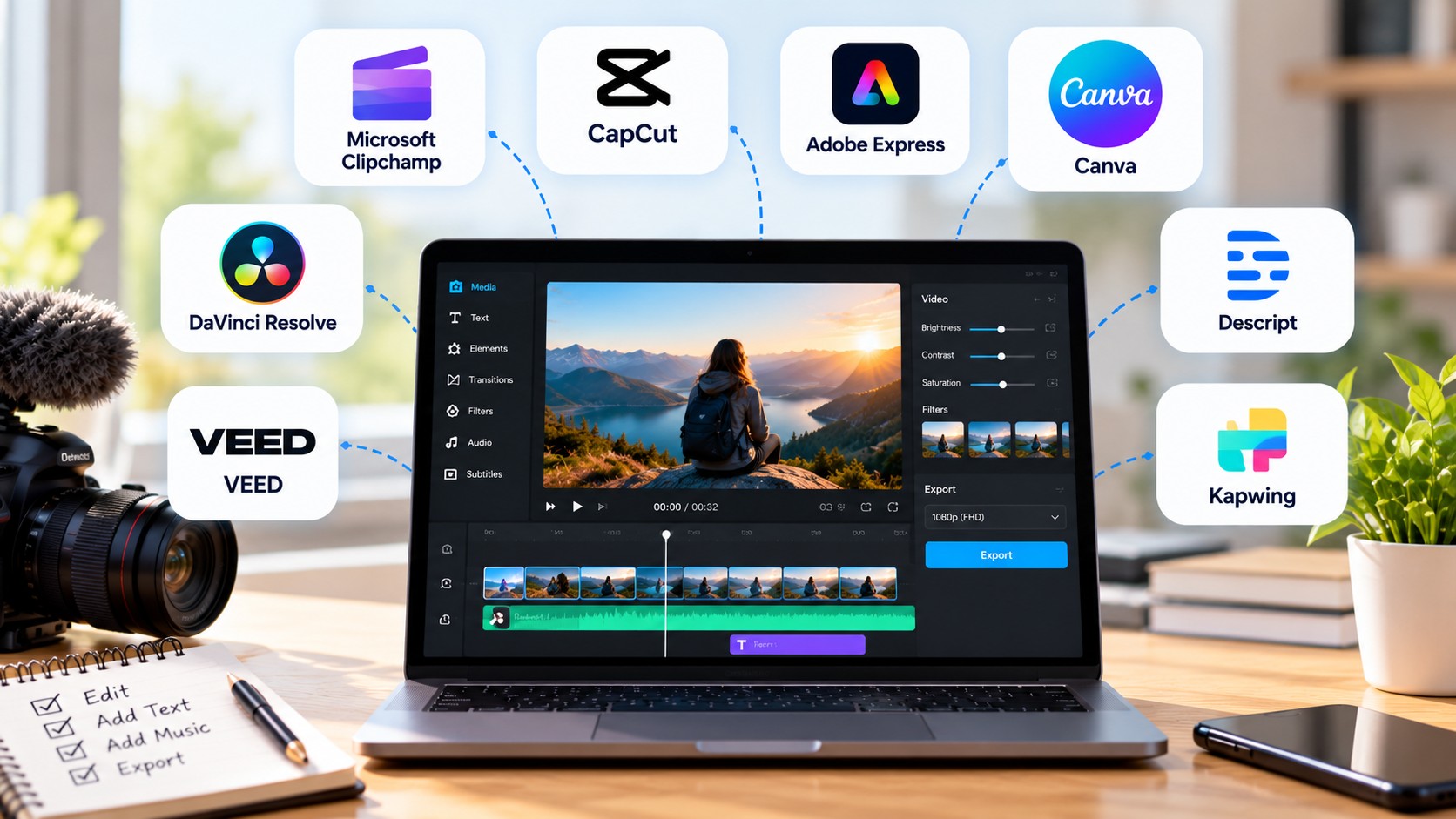
Finding the best free AI video editor is not as simple as choosing the tool with the longest feature list. Some editors can generate captions and clean up audio at no cost, while others lock their most useful AI features behind a subscription. Export limits, watermarks, and monthly usage allowances can also make a difference.
If you create YouTube videos, Instagram Reels, tutorials, product demos, or short social media clips, the right editor can save you time without adding another monthly expense.
In this guide, we compare eight free AI video editors, explain what each one does well, and highlight the limitations to check before you start editing.
Quick answer: Microsoft Clipchamp is a strong choice for beginners who want free, watermark-free editing and AI-assisted features. CapCut is worth considering for short-form videos, Descript suits podcasts and talking-head content, and DaVinci Resolve offers more advanced desktop editing. The right choice depends on your workflow and which features you need for free.
Table of Content



Best Free AI Video Editors at a Glance
| AI video editor | Best use case | What to consider |
|---|---|---|
| Microsoft Clipchamp | Beginners and everyday editing | Free exports up to 1080p without watermarks |
| CapCut | YouTube Shorts, Reels, and TikTok | Some AI tools and assets require payment |
| Adobe Express | Branded social media videos | AI features and assets vary by plan |
| Canva | Template-based video creation | Some assets and AI features are paid |
| Descript | Podcasts, interviews, and tutorials | Free usage and export limits |
| VEED | Online editing and subtitles | Check watermark and export restrictions |
| Kapwing | Resizing and repurposing videos | Free usage limits may apply |
| DaVinci Resolve | Advanced desktop editing | Many advanced AI features require Studio |
Free-plan details can change. The comparison distinguishes general editing capabilities from premium AI features, but check the official product pages before choosing a tool for regular production.
1. Microsoft Clipchamp: Best Free AI Video Editor for Beginners
Microsoft Clipchamp is a good starting point if you want to edit videos without learning a complicated application. It works in supported desktop browsers and is also available as a Windows application.
The editor provides the essential tools most beginners need, including trimming, cropping, transitions, text overlays, and audio adjustments. Its free plan also includes AI-assisted features such as automatic subtitles, text-to-speech voiceovers, and silence removal.
These features are particularly useful for tutorial creators. Instead of manually creating every subtitle or searching through a recording for long pauses, you can let the software handle part of the work and review the result.
What you get:
- AI-assisted subtitles and voiceovers
- Silence removal
- Basic video and audio editing
- Free stock media and effects
- Watermark-free exports up to 1080p
Microsoft’s official pricing information confirms these free-plan benefits. Premium features, including 4K exports and selected premium assets, require an eligible subscription. See the official Clipchamp pricing page.
Limitations: Clipchamp is designed for accessible editing rather than highly complex productions. If you need extensive visual effects or advanced colour-grading controls, a desktop editor may be a better fit.
Our take: Start with Clipchamp if you record tutorials, presentations, screen demonstrations, or straightforward YouTube videos and want to avoid paying for basic editing.
2. CapCut: Best for YouTube Shorts and Social Media Videos
CapCut is a practical option for creators who publish short videos regularly. Its editing workflow combines trimming, effects, text, transitions, audio tools, and features designed for social platforms.
You can use it to turn raw footage into vertical videos, add captions, highlight important moments, and create a more polished result without building every effect manually.
Its appeal is not limited to AI. The combination of editing tools and creative effects makes it useful for creators who want their videos to feel energetic without spending hours on post-production.
What to look for:
- Automatic captions and subtitle styling, where available
- Video effects and transitions
- Vertical video editing
- Audio and text tools
- Selected AI-assisted editing features
Limitations: CapCut offers a free plan with basic editing tools, but its official pricing page lists advanced AI capabilities and premium features under paid plans. Feature availability can also differ between the web, desktop, and mobile versions. Check the current CapCut plans before relying on a specific feature.
Our take: CapCut is worth trying if your main goal is to produce YouTube Shorts, Instagram Reels, TikTok videos, or other short-form content.
3. Adobe Express: Best for Branded Videos
Adobe Express is useful when a video needs to look consistent with your brand. You can combine footage with text, graphics, templates, and visual elements without switching between several design applications.
This makes it a sensible option for small businesses, freelancers, marketers, and creators who publish both videos and other social media content.
For example, you could create a short product announcement using existing footage, add your logo and brand colours, and prepare the result for different social platforms.
Highlights include:
- Video templates and basic editing
- Text and graphic overlays
- Branding and visual design tools
- Selected AI-assisted creation features
- Social media content workflows
Limitations: Some generative AI capabilities, assets, and premium features have plan-dependent restrictions. Adobe Express is also less suited to complex, multi-track editing than a dedicated professional editor.
Our take: Choose Adobe Express when the design and branding of your video matter as much as the footage itself.
Official website: Adobe Express
4. Canva: Best for Template-Based Video Creation
Canva is familiar to many people who create presentations, thumbnails, social posts, and marketing graphics. Its video editor brings these activities into the same workflow.
You can combine video clips, images, text, animations, and music to create promotional videos, explainers, announcements, and other short content. Templates are useful when you need to produce several videos with a similar visual style.
Canva also offers AI-powered creation tools, although not every feature is included in its free plan.
Highlights include:
- Ready-made video templates
- Text overlays and animations
- Graphics and visual assets
- Social media formats
- Selected AI-assisted design tools
Limitations: Some stock assets, advanced features, and AI capabilities require a paid plan. Canva is also less suitable for editors who need detailed control over a complex timeline.
Our take: Canva makes sense if you already use it for your content and want to create simple videos without adding another tool to your workflow.
Official website: Canva
5. Descript: Best for Podcasts and Talking-Head Videos
Descript is particularly useful when the spoken content is the most important part of a video. Rather than relying only on a traditional timeline, it lets you work with a transcript of the recording.
Imagine recording a 30-minute tutorial. You could use the transcript to find a section, remove an unnecessary passage, and prepare the recording for publication. Its audio tools and captioning workflow can also help when producing interviews or podcasts.
Highlights include:
- Transcript-based editing
- Speech transcription and captions
- Audio cleanup tools
- AI-assisted editing features
- Workflows for podcasts and screen recordings
Limitations: Descript’s free plan has usage limits. Its official pricing page lists a limited amount of media processing and AI credits, so it may not suit someone editing long recordings every day without upgrading.
Our take: Try Descript if you regularly record interviews, educational content, product walkthroughs, or podcasts where editing spoken words is a major part of the work.
Official website: Descript
6. VEED: Best for Online Editing and Subtitles
VEED is a browser-based video editor for people who prefer not to install desktop software. It offers editing tools alongside subtitle generation and selected AI-assisted workflows.
Captions can be especially valuable when viewers watch videos with their sound turned off. With an online editor, you can generate subtitles, review the text, adjust the appearance, and prepare the video for publishing.
Highlights include:
- Automatic subtitles, where supported
- Text and visual overlays
- Browser-based editing
- Audio and video adjustments
- Selected AI-assisted tools
Limitations: Free-plan restrictions may apply to export quality, watermarks, and AI usage. These details matter if you are creating content for a monetised channel or a business.
Our take: Consider VEED if you want an online editor that can handle captions and straightforward video edits in one place.
Official website: VEED
7. Kapwing: Best for Repurposing Videos
Kapwing is useful when one video needs to become several pieces of content. For example, you might record a landscape interview, publish the full version on YouTube, and then create shorter vertical clips for social media.
Its browser-based workflow supports video editing, captions, resizing, and selected AI-assisted tasks. This can help creators and small teams prepare content for different platforms without starting each version from scratch.
Highlights include:
- Online video editing
- Captions and subtitles
- Resizing and formatting
- Text overlays and templates
- Selected AI-assisted features
Limitations: Export allowances, project limits, watermarks, and AI usage can vary by plan. Check the current restrictions if you expect to process large files or publish videos frequently.
Our take: Kapwing is worth considering if repurposing existing content is a regular part of your publishing schedule.
Official website: Kapwing
8. DaVinci Resolve: Best for Advanced Desktop Editing
DaVinci Resolve is a different kind of option. Rather than focusing primarily on browser-based AI shortcuts, it provides a full desktop workflow for editing, colour correction, visual effects, and audio post-production.
Its free version is capable enough for many demanding editing projects. However, the distinction between the free version and DaVinci Resolve Studio is important if you specifically want AI automation.
Blackmagic Design lists features such as the DaVinci AI Neural Engine and several advanced AI tools among Studio’s additional capabilities. The free version still provides extensive editing and colour-grading functionality.
Highlights include:
- Detailed timeline editing
- Professional colour correction
- Audio post-production
- Visual effects and compositing
- Support for demanding video projects
Limitations: The learning curve is steeper than that of simpler editors. Some advanced AI features require Studio, and performance depends on your computer’s hardware.
Our take: Choose DaVinci Resolve if you want more control over editing and are willing to spend time learning the software. Do not choose it solely because you expect all its AI features to be free.
Official website: DaVinci Resolve
Which Free AI Video Editor Is Right for You?
The best choice depends on what you make, how often you publish, and how much editing control you need.
| If you mainly create… | Start with… | Reason |
|---|---|---|
| Tutorials and presentations | Clipchamp | Straightforward editing and AI-assisted features |
| YouTube Shorts and Reels | CapCut | Social-focused editing tools |
| Branded promotional videos | Adobe Express | Combines video with design tools |
| Template-based content | Canva | Makes graphics and video easy to combine |
| Podcasts and interviews | Descript | Transcript-based editing |
| Caption-heavy online videos | VEED | Browser-based subtitle workflow |
| Multiple versions of one video | Kapwing | Useful for resizing and repurposing |
| Complex desktop projects | DaVinci Resolve | Extensive editing controls |
If you are unsure, test two tools with the same short recording. Compare how long it takes to produce a finished video, how accurate the captions are, and whether the final export meets your requirements. This gives you a more useful answer than comparing feature lists alone.
What to Check Before Choosing a Free AI Video Editor
A tool can be free to download but still require payment for the feature you actually need. Check these details before committing to a platform.
Watermarks and export quality
If you need a free AI video editor without a watermark, verify the restrictions on the final exported file. Some tools offer watermark-free exports on their free plans, while others may limit them by feature or plan.
Check the export resolution too. A 1080p export is sufficient for many projects, but the best option depends on your source footage and publishing requirements.
AI credits and usage limits
Some editors use credits for AI generation, transcription, or advanced editing. Others limit the amount of media you can process each month.
If you publish several videos every week, a small allowance can become a problem. Calculate how much you expect to use the feature before building your workflow around it.
Editing features
Look beyond automatic video generation. You may need to trim clips, remove pauses, adjust audio, add subtitles, and resize the finished video.
A useful free AI video editing software package should support your regular workflow without forcing you to move between multiple applications for basic tasks.
Device and performance requirements
Browser-based editors are convenient, but uploading large videos can take time. Desktop applications may provide more control, although demanding projects can require substantial memory and graphics processing power.
Choose a tool that runs reliably on your device.
Privacy and licensing
Before uploading interviews, client recordings, or confidential material, review the provider’s data-handling policies. Also check the usage rights for music, stock footage, templates, and AI-generated assets, especially if you plan to monetise your videos.
How to Edit Videos Faster With AI
You do not need to automate every editing decision to benefit from AI. A practical workflow combines automation with your own judgement.
- Import your footage. Organise your recordings and identify the main message of the video.
- Create a rough cut. Remove mistakes, unnecessary pauses, and sections that do not add value.
- Generate captions. Use automatic transcription, then correct names, technical terms, and punctuation.
- Improve the audio. Balance speech and music, and reduce distracting background noise where supported.
- Add visual elements. Use titles, graphics, and transitions only when they help the viewer understand the content.
- Prepare the format. Choose landscape for standard YouTube videos or vertical framing for Shorts and Reels.
- Review the export. Watch the complete video and check for caption errors, audio problems, missing frames, and unexpected watermarks.
This process works for tutorials, product demonstrations, interviews, and many social media videos. AI can handle repetitive tasks, but the final review is still your responsibility.
Can You Use a Free AI Video Editor for YouTube?
Yes. A free AI video editor can be sufficient for a YouTube channel, especially if you produce tutorials, commentary, interviews, or short-form content.
For standard YouTube videos, focus on clear audio, good pacing, readable text, and an appropriate export resolution. For Shorts, make sure the video is framed vertically and that captions do not cover important parts of the screen.
AI can help generate subtitles, remove pauses, and speed up repetitive edits. It cannot guarantee that viewers will watch until the end. The opening, quality of the information, and overall storytelling still matter.
If you are building a complete creator workflow, read best AI apps for YouTubers. It covers a broader set of tools for tasks such as scripting, thumbnails, and video production.
Frequently Asked Questions
What is the best free AI video editor in 2026?
Microsoft Clipchamp is a strong starting point for beginners who want free editing and AI-assisted features. CapCut is worth considering for short-form content, while Descript suits spoken-word videos. The best choice depends on the features you need and the limitations of each free plan.
Is there a free AI video editor without a watermark?
Yes, some tools offer watermark-free exports on their free plans. Microsoft Clipchamp, for example, supports free exports up to 1080p without watermarks. Check the current restrictions for other editors, particularly when using premium assets or AI features.
Which free AI video editor is best for YouTube?
Clipchamp and CapCut are useful starting points for many YouTube creators. Clipchamp works well for straightforward tutorials and presentations, while CapCut is convenient for Shorts and social videos. DaVinci Resolve is worth considering for more advanced desktop editing.
Can AI edit videos automatically?
Yes. Depending on the tool, AI can generate subtitles, transcribe speech, remove silence, reframe footage, or assist with creating shorter clips. The available automation varies, and you should review the output for mistakes before publishing.
Which free AI video editor is best for beginners?
Clipchamp is a practical starting point for basic editing. Canva and Adobe Express are also worth considering if you prefer templates and design tools. Try a short project first to see which workflow feels easiest.
Are free AI video editors good enough for professional videos?
They can be. Free tools can produce polished tutorials, interviews, promotional videos, and social content. The result depends on the source footage, editing decisions, available export settings, and any licensing restrictions.
Can I use a free AI video editor online?
Yes. Clipchamp, CapCut’s web editor, Canva, Adobe Express, VEED, and Kapwing offer browser-based workflows. Some features may require an account, a stable internet connection, or a paid plan.
Is free AI video editing software safe for confidential videos?
Do not assume that every online editor handles uploaded footage in the same way. Review its privacy policy, data retention practices, and terms before uploading confidential recordings or client material.
Final Verdict
You do not need to pay for an expensive editor to start making good videos. The key is to choose a tool that solves your biggest editing problem without adding unnecessary complexity.
Start with Microsoft Clipchamp if you want a beginner-friendly editor with free, watermark-free exports. Try CapCut for Shorts and Reels, Descript for spoken-word content, or DaVinci Resolve if you need more control over desktop editing.
Before settling on one, test a short video and check the captions, export quality, watermark rules, and free AI usage limits. If the tool handles your regular tasks well, there is no reason to upgrade until you actually need the additional features.
AI can save time on repetitive work. Your judgement is what turns the edited clips into a video worth watching.