How to Download Instagram Videos in 2026 (Phone & PC)
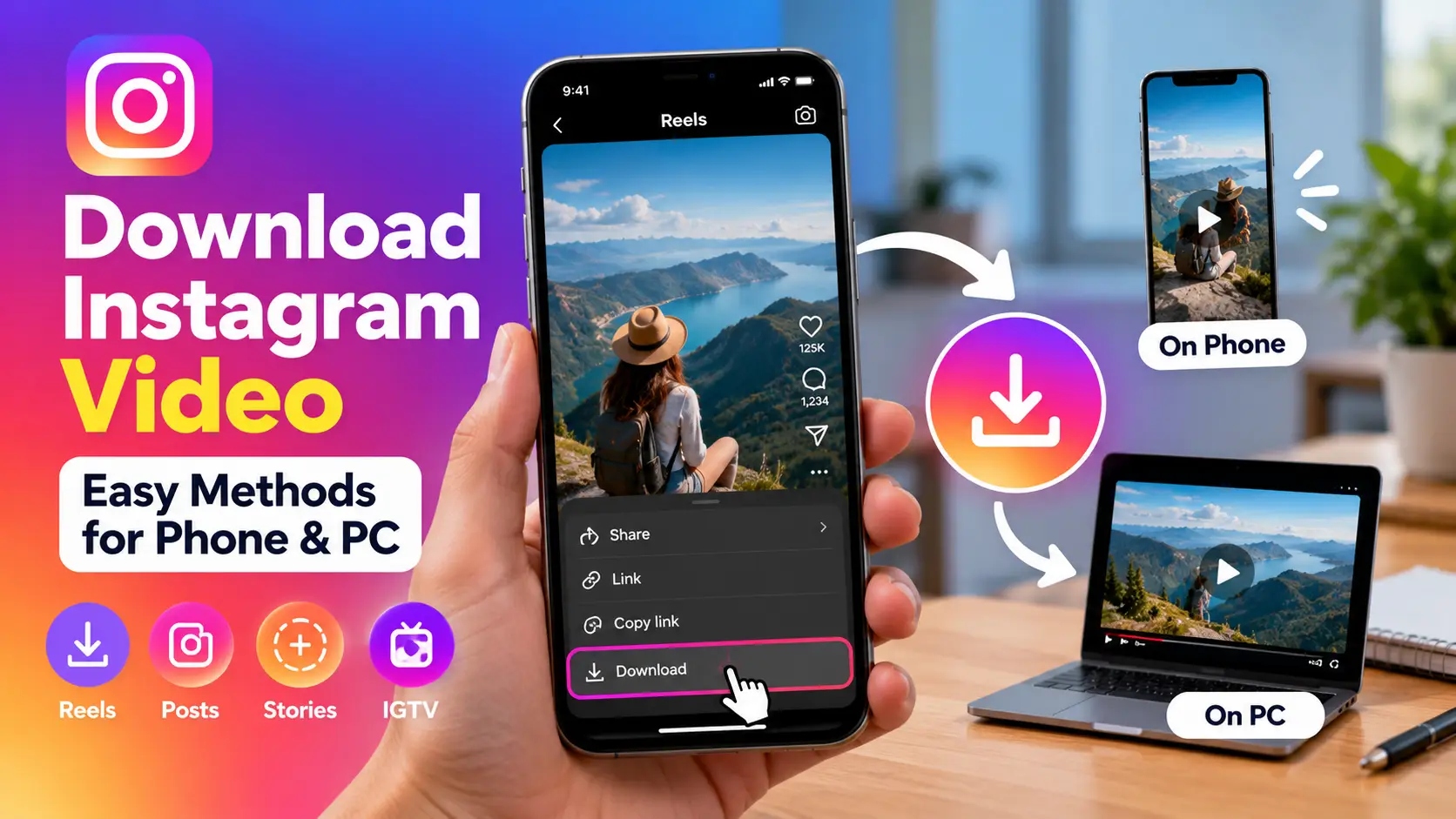
Instagram is full of videos worth keeping, from useful tutorials and travel clips to recipes, workout routines, and creative Reels. But finding a video you want to watch again is not always easy, especially when it gets buried in your feed.
The good news is that Instagram has a built-in download option for eligible Reels. You can save supported videos directly to your phone without installing another app. If the download option is unavailable, there are other ways to save your own content or keep a post accessible for later.
In this guide, you will learn how to download Instagram videos on Android, iPhone, and PC, save Reels using Instagram’s built-in features, back up your own videos, and troubleshoot common download problems.
Table of Content



Quick Answer: How to Download an Instagram Video
The easiest method is to use Instagram’s built-in download feature when it is available.
- Open Instagram and find the Reel you want to download.
- Tap the Share icon.
- Select Download from the available options.
- Wait for the download to finish.
- Open your phone’s Gallery or Photos app to find the video.
This method works for eligible Reels from public accounts when the creator allows downloads. Private content and Reels with downloads disabled cannot be downloaded through this feature.
For videos you have created yourself, you can also save the original file or request a copy of your Instagram information through Accounts Center.
Methods to Download or Save Instagram Videos
Different methods work for different situations. Choose the one that matches what you want to do.
| Method | Best for | Requires another app? |
|---|---|---|
| Instagram’s Download button | Eligible public Reels | No |
| Instagram’s Save feature | Keeping posts accessible inside Instagram | No |
| Save your original video | Your own Reels and videos | No |
| Export your Instagram information | Backing up your own posted videos | No additional downloader |
| Browser-based download tools | Limited situations involving content you own or have permission to save | Usually no installation, but third-party risks apply |
For most people, Instagram’s own download button is the best starting point. It is straightforward, and you do not need to share your Instagram password with another service.
How to Download Instagram Videos on Android
Android users can download eligible Instagram Reels directly to their phones. You do not need a separate video downloader when the built-in option is available.
Method 1: Use Instagram’s built-in Download option
Follow these steps:
- Open the Instagram app on your Android phone.
- Find the Reel you want to save.
- Tap the Share icon beside the video.
- Look for the Download option in the sharing menu.
- Tap Download and allow the process to finish.
- Open Google Photos, your phone’s Gallery, or the relevant media folder to locate the saved video.
The downloaded Reel may include an Instagram watermark and the creator’s username. Depending on the audio rights associated with the video, the saved version may not include all the original sound.
Instagram documents the availability of this feature in its Help Center guide to downloading Reels.
Where are downloaded Instagram videos saved on Android?
Downloaded videos are generally accessible through your phone’s Gallery or Google Photos app. Depending on your device and Instagram version, they may also appear in a folder associated with Instagram or in your recent downloads.
If you cannot find the video, try these steps:
- Open Google Photos or your phone’s Gallery.
- Check the Videos or Recent section.
- Look in your file manager’s Downloads and media folders.
- Reopen Instagram and check whether the download completed successfully.
Folder names vary between Android manufacturers, so the exact location may differ on Samsung, OnePlus, Xiaomi, and other devices.
Method 2: Save an Instagram video for later
What if the Download button is missing?
You can save the post to your Instagram account instead.
- Open the Reel or video post.
- Tap the three-dot menu or the Save icon, depending on the interface.
- Select Save if it appears in the menu.
- Open your Instagram profile and find the Saved section in the menu.
You can organize saved posts into collections, making it easier to find recipes, tutorials, and other useful videos.
Remember that this does not download a video to your phone. You will generally need an internet connection to watch the post, and it may become unavailable if the creator removes it or changes its visibility.
How to Download Instagram Videos on iPhone
The process is similar on an iPhone. Instagram’s built-in Download option can save eligible Reels to your device without requiring a third-party application.
Step-by-step instructions
- Open Instagram on your iPhone.
- Navigate to the Reel you want to download.
- Tap the Share icon.
- Select Download if the option is available.
- Wait for the download to complete.
- Open Apple’s Photos app and check your recent videos.
The saved Reel should appear in your photo library if the download completes successfully.
If Instagram displays a confirmation message or a notification about the download, follow any additional instructions shown on your screen.
What if the video does not appear in Photos?
First, check whether the download actually finished. Then open Photos and look under Recent or Videos.
If the video is missing, close and reopen Instagram, update the app if necessary, and try again with a Reel that has downloads enabled.
Also check whether Instagram has permission to access your photos where your device settings require it. Menu labels vary across iOS versions.
Can you download Instagram videos without installing an app?
Yes. Instagram’s built-in download option does not require an additional downloader. You can also use Instagram’s Save feature to bookmark posts for later.
Be careful with websites or apps that promise unrestricted downloads. A tool that asks you to enter your Instagram username and password is not necessary for downloading an eligible public Reel.
How to Download Instagram Videos on a PC
You can access Instagram from a desktop browser, but the available download controls may differ from those in the mobile app.
Method 1: Check Instagram’s built-in options
- Open Instagram.com in your browser.
- Sign in to your account.
- Open the Reel or video you want to save.
- Check the available sharing and post menu options.
- If Instagram provides a Download option, use it and follow the browser’s prompts.
If the option is not available on your desktop, try the Instagram mobile app for an eligible Reel. The web interface does not always offer the same controls as the phone app.
Method 2: Download your own Instagram videos
If the video belongs to you, you have more options.
You can use the original video file stored on your computer or phone. If you no longer have it, you can request an export of your Instagram information through Accounts Center.
This is particularly useful when you want to back up multiple posts instead of downloading them one by one.
How to export your own Instagram videos
Instagram provides a tool for requesting a copy of your information. Meta has documented this process in its Instagram information export guide.
The general steps are:
- Open Instagram and go to Settings.
- Open Accounts Center.
- Select Your information and permissions.
- Look for Download your information or the corresponding export option.
- Select the Instagram profile you want to back up.
- Choose the available information categories and select the relevant photos or videos options.
- Choose the destination and file settings offered by Instagram.
- Submit your request and follow the instructions to retrieve the archive when it is ready.
The available labels may differ slightly between the mobile app and desktop website.
Keep in mind that this creates an account export. It is not an instant downloader for a single video posted by someone else.
Can You Download Instagram Videos Online?
You may have seen websites described as Instagram video downloaders. These services generally ask you to paste a link to a video and then attempt to provide a downloadable file.
However, they are independent services. Their reliability, privacy practices, and compatibility with Instagram can change, and not every service is trustworthy.
If you are considering an online downloader for a video you own or have permission to save, keep these precautions in mind:
- Use the original video file or Instagram’s built-in download option whenever possible.
- Never provide your Instagram password to a downloader website.
- Avoid downloading APK files, browser extensions, or executable programs just to save a video.
- Do not grant unnecessary permissions or allow unwanted browser notifications.
- Check the site’s privacy policy before uploading files or sharing personal information.
- Do not use a tool to access private content or bypass a creator’s download restrictions.
If the creator has disabled downloads, the better option is to ask them for the original video or use Instagram’s Save feature to keep the post bookmarked.
A website claiming to download videos in HD does not guarantee that the output will retain the original resolution, sound, or quality.
How to Download Your Own Instagram Reels
If you are a creator, keeping a copy of your videos is a useful habit. It protects your work if you edit the Reel later, publish it on another platform with permission, or need to recover the original after changing devices.
Save your video before publishing
When you create a Reel, check the available tools for a Download option that saves the video to your device.
Instagram’s official guide to recording a Reel explains the recording interface and its available tools.
For future projects, keep your original footage, edited video, voice-over, and music files in a separate folder. That way, you are not relying entirely on a copy downloaded from Instagram.
Save a Reel after publishing
Open your published Reel and inspect its menu for the available download or save controls. If Instagram provides a Download option for your own Reel, use it.
For an older post or a video that cannot be downloaded individually, use the account information export described earlier.
Will the downloaded video contain music?
Not always.
A Reel may use original audio, licensed music, or other sounds with usage restrictions. A downloaded version may omit licensed audio, depending on the rights and features that apply to the video.
If you plan to reuse your own Reel on another platform, keep the original edited video and the necessary audio licenses or permissions. A copy downloaded from Instagram is not always a substitute for your original project file.
Why Is the Instagram Video Download Button Missing?
If you cannot find the Download option, it does not necessarily mean something is wrong with your phone.
Here are the most common reasons.
1. The creator has disabled downloads
Instagram lets eligible public accounts control whether other people can download their Reels. If the creator has disabled the feature, the Download option may not appear.
You can bookmark the video inside Instagram or ask the creator to share the original file.
2. The account is private
Instagram’s built-in download feature is intended for eligible public Reels. You cannot use it to download a private account’s Reel through the normal public download workflow.
Respect the account’s privacy settings rather than trying to work around them.
3. The video is not an eligible Reel
The built-in Download option is associated with Reels. Not every video format or post necessarily provides the same controls.
If the content is a standard post or another format, check the available menu options and use Save if you want to revisit it later.
4. Your Instagram app needs an update
Older versions of Instagram may not display the same controls as the latest version.
Open Google Play or the Apple App Store, check for an update, and restart the app afterward.
5. The download failed
A weak internet connection, insufficient storage, or an interrupted download can prevent a video from saving correctly.
Check your connection and available storage, then try again. If the problem continues, test the feature with another eligible Reel.
6. The downloaded video has no sound
Some downloaded Reels may not retain licensed music because of audio usage restrictions.
Try playing the original Reel in Instagram to confirm that its audio works there. If the original contains licensed music that is omitted from the downloaded copy, the missing audio may be an intentional restriction rather than a playback problem.
Is It Safe to Use an Instagram Video Downloader?
Some tools may work as advertised, but you should be cautious about giving third-party services access to your content or device.
A downloader should not need your Instagram password simply to process a public video link. Avoid any service that asks you to sign in through an unfamiliar page, install an unofficial Instagram app, or provide access to your account.
Be especially careful with tools that claim they can download private Reels, bypass privacy controls, or access videos that the creator has deliberately made unavailable for download.
For ordinary use, the built-in download option and the account export feature are safer starting points because they operate through Instagram’s own interface.
Is It Legal to Download Instagram Videos?
The answer depends on the content, how you obtain it, what you do with the copy, and the laws that apply to your situation.
Downloading a publicly available Reel does not automatically give you the right to repost it, edit it into another video, use it in an advertisement, or upload it to another platform.
Meta’s copyright guidance explains that finding content online, giving credit, or adding a disclaimer does not automatically make reuse permissible.
Before publishing someone else’s work, obtain permission or a suitable license when required. Copyright exceptions can vary by jurisdiction, so do not assume that every download or repost is permitted.
If your goal is simply to keep a useful video available, Instagram’s Save feature is often sufficient. If you need a separate file for a legitimate purpose, the best approach is to use Instagram’s permitted download option or ask the creator for the original.
Frequently Asked Questions
1. How do I download Instagram videos to my gallery?
Open an eligible Reel, tap the Share icon, and select Download. Once it finishes, open your phone’s Gallery or Photos app. If the option is missing, the creator may have disabled downloads or the video may not be eligible.
2. Can I download Instagram videos for free?
Yes. Instagram’s built-in Download option for eligible Reels is available without paying for a separate downloader. The feature depends on the Reel’s eligibility and the creator’s settings.
3. Can I download Instagram Reels on an iPhone?
Yes. Open a supported Reel in the Instagram app, tap Share, and choose Download if the option appears. The video should be saved to your Photos library.
4. Can I download Instagram videos on a PC?
You can check the available options on Instagram’s website, although the desktop interface may differ from the mobile app. For your own content, you can also request an export through Accounts Center and download the resulting archive.
5. Can I download an Instagram video without a watermark?
Reels downloaded through Instagram’s built-in feature can include an Instagram watermark and the creator’s username. If you need a clean copy of your own video, use your original file or an appropriate export of your own content. Do not remove attribution from another creator’s work to make it appear to be yours.
6. Why does my downloaded Instagram Reel have no sound?
The Reel may contain licensed music that is not included in the downloaded version. The original audio and the saved copy can differ because of music rights and other restrictions.
7. Can I download videos from a private Instagram account?
Instagram’s normal public Reel download feature does not provide a way to download private-account content. Ask the account owner to share the original file if you need a copy.
8. Does saving an Instagram Reel download it to my phone?
No. The Save feature bookmarks the Reel within Instagram. It does not create a separate video file in your phone’s Gallery, and you may still need an internet connection to watch the post.
9. Can I download all my Instagram videos at once?
You can request a copy of your available Instagram information through Accounts Center and choose the relevant media categories. The resulting archive can include your own uploaded content, depending on the options available. It is not intended to download videos from other people’s accounts.
10. Do I need an Instagram video downloader app?
Usually not. Instagram’s built-in download feature is sufficient for eligible Reels, while its account export feature helps you back up your own content. Avoid installing an extra app unless you have a clear reason to trust it and need its specific functionality.
Final Thoughts
Downloading Instagram videos is straightforward when the creator has enabled the built-in feature. Open an eligible Reel, tap Share, and select Download to save it to your phone.
If you only want to watch a video later, Instagram’s Save feature keeps it organized without creating a separate file. For your own videos, keeping the original files or requesting an account export is a practical way to maintain a backup.
Be cautious with third-party downloader websites, and remember that being able to download a video does not automatically give you the right to republish it. Use the appropriate method for your situation, respect creators’ settings, and keep your Instagram account credentials private.